Ambiance
Features
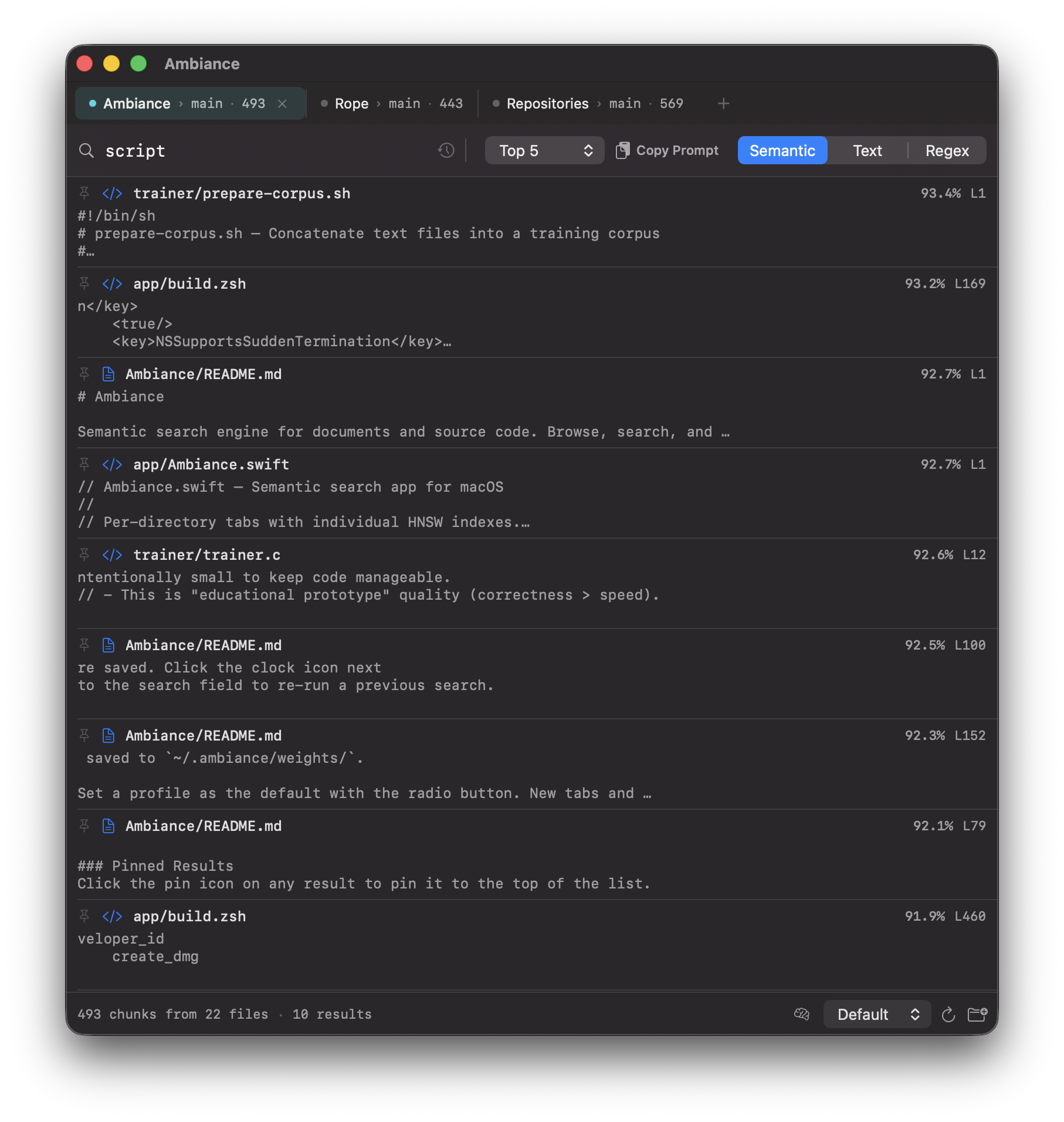
Semantic Search
Find passages by meaning, not just keywords. An on-device AI model matches what you mean to what your files say.
Local & Private
Indexing and search happen entirely on your Mac. No account, no cloud, no tracking. Files never leave the device.
PDFs and Text
Indexes PDFs, Markdown, plain text, source code, and HTML. PDF text is extracted with Apple PDFKit — no external tools required.
Multilingual
Supports around 100 languages, including English and Swedish. Queries and documents can be in different languages.
Per-Folder Tabs
Each folder gets its own tab and its own index. Shows Git branch and chunk count. Restored on relaunch.
Pinned Results
Pin key passages to the top of the results. Pinned results persist across searches and relaunches — useful for drafting and citing.
Hover Preview
Hover a result to preview the file in a side panel. Text highlighted at the match, PDFs at the correct page, HTML rendered.
RAG Prompt Builder
Copy selected results as a ready-made prompt for ChatGPT or Claude, with the relevant passages already included as context.
Rope Integration
Double-click a source code result to open it in Rope at the exact line via the rope:// URL scheme.
How It Works
- Install — download, drag to Applications, open.
- Open a folder — Ambiance indexes supported files into an HNSW vector index. Two-stage retrieval narrows by file, then by chunk.
- Search — semantic, text, or regex. Results show file, line, score, and a snippet.
- Use results — hover to preview, double-click to open, pin to save, or copy as a prompt.
Keyboard Shortcuts
⌘⇧OOpen Folder
⌘WClose Tab
⌘⇧RRe-index
⌘IFile Scope
⌘⇧CCopy Prompt
⌘,Settings
⌘/Help
ReturnSearch
Requirements
- macOS 26 (Tahoe) or later
- Apple Silicon recommended
- ~500 MB disk (embedding model ships with the app)
- Rope (optional, for source code navigation)